regular use
A student who is already registered for a class regularly logs into WHS and selects his class. Then he would
Check
for announcements and the class-web page
:
After you have requested registration in Communicating Mathematics, highlight the
Announcements
menu item to see the current announcements for the class. You can also see the class webpage from this item (click the link
class webpage
at the bottom of the table.
Retrieve
the homework
:
Now highlight the
Assignments
menu item, select the assignment
10 Sample Homework
, and click the
Display Homework
button. This is a homework with several versions, so use the version number 2002 this time.
Work
the homework
:
Now we get to the part that all of this structure is for: working the homework and checking your answers. Working the problems can be done on scratch paper while sitting at the terminal; however, often students may want to print out the homework and work it on it at their desk.
Submit
the homework
:
After you have worked the problems, retrieve it again and submit your answers. Notice that there are various answer formats in this first sample homework: selection boxes, radio buttons, checkboxes, and text boxes. (There are other answer formats.) After you have chosen the answers, or typed them in, in the case of text boxes, scroll to the bottom of the homework and press the
submit
button.
Inspect
the feedback sheet
:
The page which is displayed after you submit your answers to a homework assignment is called the feedback sheet, because it tells you how you did problem by problem. In most cases, the correct answer is displayed in addition to the answer you submitted. With a little practice, you can read the feedback sheet like the answers in the back of the book.
Make
comments or
ask
questions in the feedback sheet
:
Note that for each problem you submit an answer to, there is a 'comment box' for that problem in the feedback sheet. Use this if you have a question about the problem you want to ask the teacher. Just for practice, make a comment here and submit it. It will be mailed to the teacher (me in this case).
Rework
and
resubmit
homework
:
To rework a homework, simply display it again, using the same version number, and select new answers, and then resubmit. Or to get a similar assignment, change the version number and display.
View
homework scores
.
If you are registered in a class, you can check you progress on the homework by highlighting
Homework Scores
and clicking the
Show Scores
button.
So that, in a nutshell, is how a typical student would use WHS. It provides a convenient method for the student to retrieve, work, and submit a homework assignment. It gives instant feedback on each problem submitted and allows for questions by the student. In addition, the student can keep up with class announcements and review their performance on past homeworks.
Exercise: Make certain that you have requested registration in Eberhart's Communicating Math. It can be found in the University of Kentucky classes.
Manage Class button
Create
a class:
First type in a name for the class. For example, you could use the name
X's Test Class
, where X is your name.
Then select the school the course will be offered in (Morgan County High School)
Also select the homework list you will associate with the course. Use any homework list, and press the Creat Class button. Later, you can configure the class, and change the homework list to one you will create later.
Delete
a class :
Any class you have created you can also delete. Just select it and press the delete button.
Configure
a class:
This button will be used most often to update the announcements for the class, or to upload a webpage for the class.
Select the class you want to configure (X's Test Class) and press the button. You are led to a form where you can change several things: the name of the class, the school where the class is offered, a brief description of the class, the url of the class homepage, the current announcement, and the version of the class (use a version when you want to make sure the students all do exactly the same homework). The url can be any place where you can store a web page. The most convenient thing is to upload a zipfile containing the webpage, using the upload button at the bottom of the page. Then WHS installs the webpage on the server, and returns the url where it can be found. You type that into the homepage line of the form.
A zipfile for a starter webpage is located at
http://www.msc.uky.edu/carl/communicating_math/studwebpg/index.zip
The second button on the Teacher Resource item is
Access Records
.
Select a class you have created, press the button and a page will open with 7 activity buttons. These will be useful when you have students registered in your class.
Access Records button
Registrations and Passwords
Click this button to open a page on which you can approve registration for students who have requested it.
You can register in your own class. After a student has registered in your class, his name appears on the class roll, along with a button (underneath his ssn) to access his individual homework progress, and a link to his email. At any time, you can remove a student from your class (so that he no longer appears on the class roll). Also, you can change his password, in case he forgot it or in the rare instance where you might need to block his access to WHS.
Student Comments
This button takes you to a page which lists the comments that students have submitted from the feedback sheet on a homework. Also, this page contains the student answers to handgraded questions (those with the answer format AX_) .
Update class grades
This button takes you to a page on which you can record exam scores for students on your roll. It is set up for 3 midterms, a final, and a grade for the course.
Assignment Submissions
This button leads to the page from which you can download comma separated files of student responses to the homework assignments. Most of this is summarized in the two buttons which follow.
Summaries by Student
This button brings up a page giving data on student performance (in your class)on the homework, by assigment.
Systemwide Summaries
This button brings up a page giving data on all student performance on your homework, even those in other classes.
Exercise: Make sure you have created a class of your own, either in Morgan County High or Morgan County Middle school.
The Homework List Management table
In this table are gathered the activities associated with creating and maintaining a homework list.
Creating
a homework list:
All you need to do to create a homework list is decide on a name. After you press the create list button, go back to the top table (Homework Testing) and set the homework list to the list you created. Then you can add homeworks to the list.
Adding
homeworks to your homework list:
To add a homework, choose a display name you want to display it by in the list, then set the author of the homework in the Homework Testing table, then select the installation name in the Homework List Management Table, and press the
Add to List
button.
(Note
: It is a good idea to start the display name with a two digit number. You can use this device to order the homeworks in the order you prefer.)
Publishing
a homework list
:
You may press this button to toggle a publication flag for a homework list you have created, thereby allowing other teachers to use it as a homework list in one of their classes.
Deleting
a homework list
:
You may press this button to delete a homework list you have created at any time, provided it is not being used as a homework list in any class
Removing
a homework from a list
:
Press this button to remove a homework you have added to your list by mistake.
The Homework Installation table
This table is the one most used by authors. It has numerous buttons to initiate various authoring activities.
Creating
a homework name:
This is merely giving a name to the homework you plan to install. The name must be the same as the zipfile that is used to install the homework, and also the same as the source html document in the zipfile.
Toggling
the downloading flag
:
After you have installed a homework, you can toggle the downloading flag. (Downloadable homeworks are not dimmed in the Toggle Downloading selection box.) This can be toggled temporarily by you when you want to make a change in the assignement. See below on modifying a downloaded assignement.
Deleting
Homework
:
Press this button to remove a homework you have installed from the server.
Uploading
the homework zipfile:
Before you press this button, you must browse your computer to find the homework zipfile you want to install. When you have located the correct zipfile in the browse window, press the open button, then
Installing
the homework
:
press the Install button.
Showing
the homework
:
After you have installed the homework, you can inspect it with the Show homework button, or you can go to the top window and test it there.
Exercise: Make sure you have created a homework list (just the name, no assignments in it yet), and configured your class (created above) so that its homework list is the one you have created.
Installing your first WHS homework
The goal of this activity is to lead you through the process of creating and installing a homework in WHS using Maple. Instead of starting from scratch, you will download a homework zipfile from Communicating Mathematics and work with that. We will use the word zipit from the MCtools package to prepare the homework zipfile.
Here are the steps we will follow.
0 First log into WHS
.
1 Download
the homework zipfile:
Highlight the
Teacher resources
Menu item and click the
Authoring Tools
button.
In the top table, select the Homework List Eberhart's Workshop2003 and press the Set Menus button.
In the second row of the top table, select homework 10 First Homework and press the download button.
A window pops up. Choose to save the file, which is called comath10whs.zip. Save it in a directory (perhaps
My Documents
) on your C drive.
2 Unzip
the homework file:
If you are using Windows XP, you can click
My Computer
from the Start Button and find the zipfile you saved. Then rightclick the zipfile and choose the option
Extract All
. The zipfile will be unzipped into a directory comath10whs.
If you are using Windows 2000, you will have to unzip the file using winzip or some other unzipping program. You should still unzip it into a separate directory named something like comath10whs.
3 Load
the source worksheet into Maple:
Locate the file comath10.mws in the directory and double click it. Maple will run and open the worksheet comath10.
4 Execute
the MCtools package:
At the top of the worksheet, there is a closed section titled
MCtools
(June 8, 2002). Open that section, put your cursor anywhere in the red text you see and press return. This executes the MCtools package and enables you to use the vocabulary of words in it. Go to the top of the worksheet and close the MCtools section.
5 Edit
the homework:
The worksheet comath10.mws is the
source worksheet
.for the homwork comath10whs. You are going to make a small modification to this homework and install it as your first homework. To keep it simple, change the title of the homework from
Arithmetic Problems
to
Computing with Fractions.
That will be our only change in the homework. There will be one additional change in the worksheet so that we can make zipfile..
Go to the top of the Maple worksheet and locate the line of red input text
zipit("comath10","f://cfiles/cmath/comath1");
Change the second string to the correct path on your computer to the directory containing the files you have saved. So, for example, if you files are in the directory comath10whs located in the temp directory on your c drive, the correct string would be
"c://temp/comath10whs".
6 Save
and
export
the revised worksheet:
Now highlight the
File
menu at the top of Maple and click on
Save
to save the change in the title. Then highlight
File
again and click on
Export As
, then in the window that opens click on
Html
. In succession click on
Save
,
Ok
, and
Yes to All
. to export the changes to html files. Now you are ready to create the zipfile.
7 Use
MCtools[zipit] to make a new zipfile:
Go to the
zipit
line at the top of the worksheet, put your cursor in the line and press return to execute the command. A window should open briefly, and a line telling where to find the zip file just created will be refreshed. At this point you are ready to to to WHS to complete the installation of the homework.
8 In WHS,
create
a name for your homework
Login to WHS, highlight the
Teacher Resources
menu item and click on the
Authoring Tools
Button.
Go to the bottom table in the page that opens, and in the top line of it, type in the name comath10whs and press the
Create Homework
button. This creates the homework name, and you can upload the homework zipfile now.
9 In WHS
, Upload and Install
the homework to your set of homeworks:
Go to the bottom table again and press the
Browse
button. Use the window that opens up to locate the zipfile comath10whs.zip on your computer. You can hightlight the name and click it to make it appear in the Open line. Then press the Open Button. The window disappears, and the path to the zipfile appears in the upload line of the bottom table. Press the
Upload zipfile
button. After a few seconds, you receive a message that the file was uploaded successfully.
To Install the homework, make sure its name appears in the next to last line of bottom table and then press the
Install homework
button. You will receive the message that the homework installed successfully.
10 In WHS,
Preview
the homework
:
Go to the bottom table, select the homework in the last line of the bottom table and then press the
Show homework
button.
11 In WHS
, Add
the homework to your homework list:
If you haven't done so already, create a homework list (Go to the middle table in the Authoring Tools page and type in a name for your list in the middle line there and press the
Create List
button.)
In the
top table
, select your homework list and press the
Set Menus
button.
In the
middle table
, type a Display Name (such as
01 First Homework
) for the homework you just installed and make sure that homework appears in the selection box to the right of the name you typed. Then press the
Add to List
button.
The editing cycle
After you have installed a homework the first time, you may, and often will, find a need to make a change in the homework, to add a problem, correct the answer to a problem, etc. You are entering the
editing cycle
:
1. open the source worksheet for the homework. If you have it on your computer already, fine; otherwise, download the homework zipfile (you may need to toggle the download button on the homework installation page), and unzip it into its own directory.
2. execute the MCtools package at the top of the directory, then close that section.
3. make the changes source worksheet
4. save the source worksheet
5. export the worksheet to html
6. execute the zipit line at the top of the worksheet (if needed, change the inputs to zipit)
7. Go to WHS and (re)install the homework
8. Inspect the homework from WHS. If not satisfactory, go to 3, else quit.
Exercise: Make sure you have installed your first homework and have displayed it in your homework list.
Exercise: Request registration in your own class and also one other participants class. Then retrieve the first homework in each class and submit at least one answer. On the feedback sheet, make a comment and Mail it out to the teacher.
Catechism on B
asic Editing.
The answers below are not unique, but are the most convenient for me.
How do you open an input cell above the cursor?
Answer
: Press
control J
, that is, hold the control key down and press the j key
How do you open an input cell below the cursor?
Answer:
Press control K
How do you change an empty input cell into a text cell?
Answer
: Press F5
How do you typeset a mathematical expression in a text cell? Answer: Press control M, then type it in, then toggle the X and Maple leaf at the upper left.
How do you join two cells?
Answer
: Put the cursor in the top cell and press F4
How do you split a cell?
Answer
: Put the cursor at the front of the line just below the desired split and press F3
How do you copy and paste text?
Answer
: Use the cursor select the text, then press control C. Then place the cursor and press control V.
How do you put a new line in an input cell with out executing it?
Answer
: Do a
shift return
, that is, hold the shift key down and press enter.
How do you create a new section?
Answer
: Hold the alt key down and press I and S ( or U depending on desires indent) in succession
How do you copy and paste a section?
Answer
Close the section and select it. Control C and control V to copy and paste it.
Exercise: Practice each of these basic editing operations until you know them.
4. Naming and Using
expression sequences, sets, and lists.
It is important to distinguish between three ways to input data into a Maple input line. Each way has its uses.
An
expression sequence
is a comma separated sequence of expressions. So for example
>
(a+b)^2, 2*x^2-2, 4^10, 2*(x^2-1) ;

is an expression sequence. It has four things in it. We can give a name to the expression sequence so that we can refer to it later without having to type it in again. We'll call our sequence bill.
>
bill :=(a+b)^2, 2*x^2-2, 4^10, 2*(x^2-1);

We can refer to terms in the sequence by using indices, so bill[2] refers to the second term in the sequence.
>
bill[2];

>
If you want to treat it as a single object, you can put
square brackets
around it. This is called a
list
.
>
[(a+b)^2, 2*x^2-2, 4^10, 2*(x^2-1)];
![[(a+b)^2, 2*x^2-2, 1048576, 2*x^2-2]](images/webpage30.gif)
If you enclose an expression sequence in
curley brackets,
the result is called a set. Duplicates are removed from a set and the order of the terms in a set may get changed by Maple.
>
{(a+b)^2, 2*x^2-2, 4^10, 2*(x^2-1)};

You can name lists and sets, just like you can an expression sequence. In fact, you can give a name to almost any Maple output and use that to refer to it later in the worksheet.
Exercise: Give a name to list above and then multiply the first term in the list by the last term in the list.
>
>
6. Using
the plots, plottools and MCtools packages
The plots, plottools, and MCtools packages all contain Maple words which are used to draw diagrams containing lines, circles, polygons, spheres, etc. Anytime we want to include a diagram in the statement of a WHS problem, we will use one or more words from one or more of these packages.
Example
: Make a diagram of a square with an inscribed circle.
Solution. There are many ways to do this in Maple. Here is one. We draw (using the word polygon in plottools) the square with vertices [0,0], [1,0], [1,1], and [0,1]. Give it a name so that we can refer to it later.
>
sq := plottools[polygon]([[0,0],[1,0],[1,1],[0,1]],color=grey);
![sq := POLYGONS([[0., 0.], [1., 0.], [1., 1.], [0., ...](images/webpage32.gif)
Then draw the inscribed circle (using disk in plottools).
>
circ := plottools[disk]([.5,.5],.5,color=yellow):
Now use plots[display] to put both of these objects on the same graph. Note the choice of options scaling = contained (that means draw to scale) and axes = none (that means don't show the x and y axes).
>
plots[display](circ,sq,scaling=constrained,axes=none);
![[Maple Plot]](images/webpage33.gif)
Exercise. Using the help page for plots[textplot], put a label in the center of the circle saying "yellow circle in grey square".
>
>
>
The plots and plottools packages come with Maple. The MCtools package was written at UK specifically to help create WHS homework. It has several words to aid in drawing and labelling diagrams, plus some words to aid with formatting a problem for WHS. You will usually find a version at the top of any Maple worksheet which is the source of a WHS homework.
The procedure to use MCtools is to open the section which contains it and execute the cell containing MCtools, then close the section. MCtools help is different too. A list of the word in the package is available by executing
mctools();
in an input cell.
>
mctools();
MCtools, version 5/19/02.
Current choices are [ARRW, Axes, CARR, DL, DV, GP, GP2, GP3, MM, PA, PARAMS, PC, PP, PT, RANDANS, addlink, addsectionhint, colors, hashang, lineit, mcprint, mctools, roundto, tableit, tagit, zipit].
"mctools(X)" gives syntax and defaults for "X"
>
Several of the graphing word in MCtools are written to simplify the use of some corresponding word in plots or plottools. For example, PT means Put Text and replaces plots[textplot]. So we could add the label in the above exercise with PT. Get the syntax.
>
mctools(PT);
MCtools, version 5/19/02.
PT(Location,txt,fontsize=16,clr=black)
>
>
plots[display](circ,sq,PT([.5,.5],"yellow circle in gray square"),
scaling=constrained,axes=none);
![[Maple Plot]](images/webpage34.gif)
Exercise:
Subdivide the square into 4 subsquares and put inscribed circles into each of those squares. Use PC, Put Circle, from the MCtools package to draw the circles.
>
>
Answers to exercises
Exercise:
Type the number
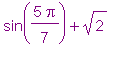 into an input cell. End the line with a semicolon. Put the cursor anywhere in the line and press return. Then convert it to a decimal number.
>
sin(5/7*Pi)+sqrt(2);
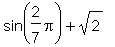
>
evalf(sin(5/7*Pi)+sqrt(2));

>
Exercise.
Solve the equation
 =
=
 by plotting both sides of the equation on the same axes.
>
plot({2*x+1,x^3-1},x=-2..2);
![[Maple Plot]](images/webpage40.gif)
By inspection, we see that the equation only has one real solution, approximately x = 1.78 (See this by putting your curson on the crossing point on the graph, clicking the left mouse button, and reading the approximate coordinates of the crossing point in the line just above the upper left corner of the worksheet.
>
>
solve(2*x+1=x^3-1,x);
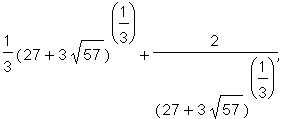


>
Exercise.
Solve the equation
 =
=
 by using the Maple word solve. (To get the solutions in decimal form, make at least one of the coefficients decimal.
>
solve(2*x+1 = x^3-1.,x);

So, we see one real solution at x=1.77 approximately, and two complex solutions.
>
Exercise: Give a name to list above and then multiply the first term in the list by the last term in the list.
>
sam := [(a+b)^2, 2*x^2-2, 4^10, 2*(x^2-1)];
![sam := [(a+b)^2, 2*x^2-2, 1048576, 2*x^2-2]](images/webpage47.gif)
>
sam[1]*sam[4];
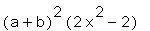
>
expand(sam[1]*sam[4]);

>
Exercise: How is the Maple word
expand
used?.
Highlight the word and click on Help. Then click Help on expand. A page comes up. Go to the bottom and skim the examples to see the usage. If you have any further questions, you can read the descriptive text at the top of the help sheet. We see that expand can be used to multiply out polynomials, among other things.
>
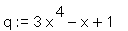
p := x^2 + 3; q := 3*x^4 -x +1; p*q;


>
expand(p*q);

Exercise: What is a package and how do you use one?
Highlight the word and click on Help, then on Help on package. You are given two choice. Choose the index of packages. Then click on the
plots package
. There are lots of words in this package. One you will use later is
display.
This is used to display several drawings in the same picture. Another word word in plots is textplot, which is used to put labels on drawings. See the next section.
>
with(plots);
Warning, the name changecoords has been redefined





>
?plots[display]
Exercise. Using the help page for plots[textplot], put a label in the center of the circle saying "yellow circle in grey square".
Using the syntax as described in the examples, create the label, name it, and add the name to the display.
>
labl := plots[textplot]([.5,.5,"yellow circle in grey square"]):
>
sq := plottools[polygon]([[0,0],[1,0],[1,1],[0,1]],color=grey);
![sq := POLYGONS([[0., 0.], [1., 0.], [1., 1.], [0., ...](images/webpage59.gif)
>
circ := plottools[disk]([.5,.5],.5,color=yellow):
>
plots[display](labl,circ,sq,scaling=constrained,axes=none);
![[Maple Plot]](images/webpage60.gif)
Exercise:
Subdivide the square into 4 subsquares and put inscribed circles into each of those squares. Use PC, Put Circle, from the MCtools package to draw the circles.
>
sq1 := plottools[polygon]([[0,0],[1/2,0],[1/2,1/2],[0,1/2]],color=grey):
sq2 := plottools[polygon]([[0,1/2],[1/2,1/2],[1/2,1],[0,1]],color=red):
sq3 := plottools[polygon]([[1/2,0],[1,0],[1,1/2],[1/2,1/2]],color=blue):
sq4 := plottools[polygon]([[1/2,1/2],[1,1/2],[1,1],[1/2,1]],color=green):
>
circ1 := PC([.25,.25],.25,color=yellow):
circ2 := PC([.25,.75],.25,color=magenta):
circ3 := PC([.75,.25],.25,color=turquoise):
circ4 := PC([.75,.75],.25,color=pink):
>
>
plots[display](circ1,circ2,circ3,circ4,sq1,sq2,sq3,sq4,scaling=constrained);
![[Maple Plot]](images/webpage61.gif)
Now if we were to use the disk word from plottools, we could color the inside of the circle
>
circ1 := plottools[disk]([.25,.25],.25,color=yellow):
circ2 := plottools[disk]([.25,.75],.25,color=magenta):
circ3 := plottools[disk]([.75,.25],.25,color=turquoise):
circ4 := plottools[disk]([.75,.75],.25,color=pink):
>
plots[display](circ1,circ2,circ3,circ4,sq1,sq2,sq3,sq4,scaling=constrained);
![[Maple Plot]](images/webpage62.gif)
Using Maple while making up and solving problems
We are all acustomed to writing, thinking, and working on paper, and will continue to do that. Being teachers, we can also add the blackboard work to the list of media we feel comfortable working and thinking with. Increasingly, we adding the monitor screen and keyboard to this list. The Maple worksheet provides a 'paper-like' place to work on mathematics problems, make calculations, draw diagrams, and write textual materials in a way that can be saved and retrieved later for further work.
Starting
with a familiar problem.
To illustrate how you might use Maple to work on mathematics, lets take a familiar problem as the starting point.
Problem.
Bill mows a yard in 3 hours. Jim can mow the same yard in 2 hours. How long does it take them to mow it together? (Assume they do not slow each other down, when they work together.)
Setting
up the equation for the problem.
Let x be the length of time it takes when they mow together. Then in 1 hour, they mow
 of the yard. Now Bill mows
 of the yard in an hour and Jim mows
 of the yard. So the equation is
 =
=
 Taking reciprocals of both sides, we get
 = 1.2 hours log(3)
Exercise on inline formatting.
When you type a mathematical expression into a text cell, you use calculator syntax. You can convert this to a typeset expression by painting the expression with your mouse cursor, then using the mouse to open the
Format
menu on the top line of Maple, then selecting the
Convert to
item (at the bottom of the menu), then selecting the
Standard Math
item in the menu that opens up. It sounds a little involved, and it is tedious, but it is important to be able to do it. Use the procedure to format the mathematical expressions in the next two lines.
1 Pythagoras' theorem says that in a right triangle with legs a and b, and hypotenuse c, c^2 = a^2 + b^2.
2 The sum of the reciprocals of x and y would be written 1/x + 1/y, the reciprocal of that is 1/(1/x +1/y).
Using
the algebraic manipulation vocabulary in Maple to solve your equations.
We can also use Maple to solve the equation.
>
eq := 1/x = 1/3+1/2;

>
solve(eq
,x);

>
Using
text cells to record your notes and comments on the solution.
It is very handy feature to have. To be able to record notes and comments in the same place you make computations works well. You can turn an empty input cell into a text cell by placing the cursor in it and pressing the F5 function key
Modifying
the problem to a parameterized problem or to a related problem
.
A
parameter
is a quantity which is regarded as known but unspecified in a problem.
We can parameterize this problem by replacing the numbers in the problem with parameters and then solving in terms of the parameters.
Parameterized Problem.
Bill mows a yard in A hours. Jim can mow the same yard in B hours. How long does it take them to mow it together?
Solution.
As before let x be the time needed when both are working together. In one hour, Bill mows
 of the yard and Jim mows
 of the yard. Together, they would mow
 of the yard. Solving for x, we get
 =
=

Checking the solution with Maple,
>
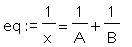
eq := 1/x = 1/A + 1/B;
>
solve(eq,x);

Exercise. Work this related problem. "Bill mows a yard in 5 hours. Together Bill and Jim can mow the yard in 2 hours. How long does it take Jim to mow it?" Then parameterize the problem and rework it.
We need to develop strategies for checking our work. For example, one good check is to work the problem using a different tool. So doing the problem with pencil and paper, and then using Maple to resolve the equation will sometimes expose errors. In geometric problems, drawing a scale picture can serve as a visual check to a computation. Here's an example.
Problem. Find the area of the circle inscribed in an isosceles right triangle with a hypotenuse of 10.
Solution outline.
We need to find the radius of the inscribed circle. Call it R. The the area of the circle is
 . So lets find an equation in R to solve.
We can make a rough sketch on paper
of the triangle and its inscribed circle to help us with our thoughts. The circle touches the hypotenuse at the midpoint (why?). Using this fact and two congruent triangles (which ones?), we can write two expression for the length of a leg of the triangle:
. So lets find an equation in R to solve.
We can make a rough sketch on paper
of the triangle and its inscribed circle to help us with our thoughts. The circle touches the hypotenuse at the midpoint (why?). Using this fact and two congruent triangles (which ones?), we can write two expression for the length of a leg of the triangle:
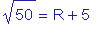 . Solve for R to get
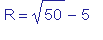 . So the area is
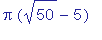 . We can this to a decimal approximation,
>
R:=evalf(sqrt(50)-5);

>
Area := evalf(Pi*R^2);

Now, we can draw a scale diagram to check our work. First draw the triangle. We can situate it in the coordinate plane so that the vertex opposite the hypotenuse is at the origin [0,0], and the other two vertices are at [
 ,0] and [0,
 ]. So, now we use the plottools and plots package words to draw and name the triangle and the circle, then display them together.
>
tri := plottools[polygon]([[0,0],[sqrt(50),0],[0,sqrt(50)]],color=yellow):
>
circ := plottools[disk]([R,R],R,color=turquoise):
>
plots[display](circ,tri,scaling=constrained);
![[Maple Plot]](images/webpage86.gif)
The visual evidence is sufficient to convince me of the correctness of my method.
Exercises.
1 Change the colors of the diagram.
2. Change the location of the triangle in the coordinate plane.
3. Interchange the order of tri and circ in the display line. What is the effect?
4. In the display line, remove the option scaling = constrained. What is the effect?
5. Get the help page on plot[options] and find out how to remove the axes from the diagram. (Hint: look at the second option.)
answers to exercises
Exercise on inline formatting.
When you type a mathematical expression into a text cell, you use calculator syntax. You can convert this to a typeset expression by painting the expression with your mouse cursor, then using the mouse to open the
Format
menu on the top line of Maple, then selecting the
Convert to
item (at the bottom of the menu), then selecting the
Standard Math
item in the menu that opens up. It sounds a little involved, and it is tedious, but it is important to be able to do it. Use the procedure to format the mathematical expressions in the next two lines.
1 Pythangoras' theorem says that in a right triangle with legs a and b, and hypotenuse c,
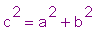 .
.
2 The sum of the reciprocals of x and y would be written
 , the reciprocal of that is
 .
.
Exercise. Work this similar problem. "Bill mows a yard in 5 hours. Together Bill and Jim can mow the yard in 2 hours. How long does it take Jim to mow it?" Then parameterize the problem and rework it.
Solution
. Here in the parameterized probleme problem we could replace 5 with A and 2 with B. Then the equation would be
 . Solve for x to get
 =
=
 . So now, the solution to the specific instance of the problem with A = 5 and B = 2 is 10/3 =3.33 hours
We can make an
arrow
function
here. (Get the help page for -> to see more examples)
>
f := (A,B) -> A*B/(A-B);
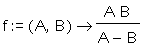
Now to get the value of x for any values of A and B (with A > B > 0), just call the function with those values
>
f(5.,2);

>
Exercises.
1 Change the colors of the diagram.
I like magenta and grey. (You may have other preferences)
>
tri := plottools[polygon]([[0,0],[sqrt(50),0],[0,sqrt(50)]],color=magenta):
>
circ := plottools[disk]([R,R],R,color=grey):
>
plots[display](circ,tri,scaling=constrained);
![[Maple Plot]](images/webpage95.gif)
You can make a function here too. This is a more complicated function, so we would use the word proc to define the function.
>
pic := proc(clr1,clr2)
local tri,circ;
tri := plottools[polygon]([[0,0],[sqrt(50),0],[0,sqrt(50)]],color=clr1): circ := plottools[disk]([R,R],R,color=clr2):
plots[display](circ,tri,scaling=constrained);
end:
>
pic(blue,red);
![[Maple Plot]](images/webpage96.gif)
>
2. Change the location of the triangle in the coordinate plane.
This is a matter of changing the coordinates of the vertices of the triangle and the center of the disk. So, if we wanted to flip it about the x axis, the only change would be to move the point [0,sqrt(50)] to [0,-sqrt(50)], and the center of the circle to [R, -R].
>
tri := plottools[polygon]([[0,0],[sqrt(50),0],[0,-sqrt(50)]],color=magenta):
>
circ := plottools[disk]([R,-R],R,color=grey):
>
plots[display](circ,tri,scaling=constrained);
![[Maple Plot]](images/webpage97.gif)
>
3. Interchange the order of tri and circ in the display line. What is the effect?
The effect is that you don't see the color of the disk. What display does is lay down the parts of the picture from right to left. If you want to see the color of a part, lay it down after you lay down anything that covers it.
4. In the display line, remove the option scaling = constrained. What is the effect?
The effect is that the circle becomes an ellipse. Setting the scaling = constrained option forces the same scale to be used on both axes. If you don't set that, Maple chooses separate scales so as to make the picture as large as possible. Something tall and skinny would be stretched out in the horizontal direction.
5. Get the help page on plot[options] and find out how to remove the axes from the diagram. (Hint: look at the second option.)
Set the option axes = none in the display line.
Using tagit (and zipit) to format homework problems
It is quite possible to insert the WHS tags into the problem by typing them directly in, but we will avoid that by using the word
tagit
from the MCtools package. In order for tagit to format correctly, the MCtools[zipit] must be used to filter the html file that you export the homework source worksheet to.
You can refer back to the section on using zipit for how to do that.
Tagit has several options, but the ones which used most often are
problem=, anstype=, rightanswers=,
and, when you have multiple choice question
, answers=
.
Note the form of each option below.
problem
= is a list. In this case the list has only one expression in it. That expression is itself a list whose only element is a string. Generally, the elements of problem= are lists, names, or plot structures. If an element of problem= is a list, then its elements are strings, or names, or plot structures.
anstype
= is a name, which tells WHS which of its many answer formats you want to use for this problem.
answers
= is a list of alternative answers to the question (for multiple choice questions)
rightanswers
= is a list of 0's and 1's in case the answer format is a multiple choice format. It has the same length as answers=, a 1 indicates a correct answer, 0 an incorrect answer.
Here are some ways to format the lawnmowing problem or variations thereon with tagit.
Exercise. type mctools(tagit); in the input cell to get the complete list of options it has.
>
>
The help message for tagit is rather terse. In practice, it is useful to help jog your memory about the syntax of the word.
What follows are several examples illustrating options that are built into tagit.
inserting a diagram
How do we insert a diagram into a WHS problem constructed with tagit? Well, construct and name it as shown in the Introduction to Maple, then just put the name into the problem= list. For example, for the yard problem, we could draw a rectangular yard, divided into 6 equal strips, then show Bill mowing 1/3 of it and Jim mowing 1/2 of it, with the title "After one hour".
>
yard := plottools[polygon]([[0,0],[6,0],[6,1],[0,1]],color=green):
sticks := plot({[[1,0],[1,1]],[[2,0],[2,1]],[[3,0],[3,1]],[[4,0],[4,1]],[[5,0],[5,1]]},color=red):
>
Bill := plottools[polygon]([[0,0],[2,0],[2,1],[0,1]],color=yellow):
>
Jim := plottools[polygon]([[3,0],[6,0],[6,1],[3,1]],color=turquoise):
>
Blabel := PT([1,1/2],"Bill mows 1/3"):
Jlabel:= PT([4.5,1/2],"Jim mows 1/2"):
>
pic := plots[display](sticks,Blabel,Jlabel,Bill,Jim,yard,axes=none,
title="After one hour"):
>
pic;
![[Maple Plot]](images/webpage104.gif)
>
tagit(
[problem=[["Bill mows a yard in 3 hours. Jim can mow the same yard in 2 hours. How many hours does it take them to mow it together? (Assume they do not slow each other down when they work together.)"],pic],
anstype=radio,
answers=[5,1/3+1/2,1/(1/3+1/2),2.5,1/5],
rightanswers=[0,0,1,0,0]]);
QM_[0;6/5]
AH_[0]
Bill mows a yard in 3 hours. Jim can mow the same yard in 2 hours. How many hours does it take them to mow it together? (Assume they do not slow each other down when they work together.)
![[Maple Plot]](images/webpage105.gif)
AL_[5/6;2.5;6/5;1/5;5]
SKIP_
>
displaying a mathematical expression or diagram
If you have a mathematical expression that you want to be displayed nicely (not in calculator syntax), don't put it in quotes. Instead break it out of the problem statement and list it by itself. So if the problem was [["What is the value of 1/(1/a + 1/b) for a = 2 and b = 3?"]], you would break out the expression as follows [["What is the value of "],1/(1/a + 1/b),["when a = 2 and b = 3?"]]
>
tagit(
[problem=[["What is the value of "],1/(1/a + 1/b),["when a = 2 and b = 3?"]],
anstype=radio,
answers=[1/5,2/5,1/6,5/6,1],
rightanswers=[0,0,0,1,0]]);
QM_[0;5/6]
AH_[0]
What is the value of

when a = 2 and b = 3?
AL_[2/5;1;1/5;5/6;1/6]
SKIP_
Exercise. Suppose the problem were [["Write 1/(1/2 + 1/3) as a simple fraction."]]. How would you break out the expression in this case? Hint: Look at the example illustrating checkboxspread.
Now, suppose you wanted to display the expression nicely 'inline', that is on the same line with the text. This can be done with the MCtools word
lineit.
Lineit can be used inside the problem option (or the pretext or aftertext options). The input for lineit is a list of items, each of which is a list, a plot structure, or a mathematical expression..
>
tagit(
[problem=[lineit([["What is the value of "],1/(1/a + 1/b),["when a = 2 and b = 3?"]])],
anstype=radio,
answers=[1/5,2/5,1/6,5/6,1],
rightanswers=[0,0,0,1,0]]);
QM_[0;5/6]
AH_[0]
lt_table gt_tr_td_
What is the value of
dt_td_

dt_td_
when a = 2 and b = 3?
dt_
rt_ lt_/table gt_
AL_[1/5;1;1/6;2/5;5/6]
SKIP_
The formatted problem has some HTML pretags (they are converted to real HTML tags by zipit) which make a the line a table with one line and three cells. The middle cell in this case has the mathematical expression. You can't really see the effect until you look at the posted WHS homework.
You can use lineit to place a diagram to the side of the problem. Here's an example.
>
tagit(
[problem=[lineit([["Bill mows a yard in 3 hours. Jim can mow the same yard in 2 hours. How many hours does it take them to mow it together? (Assume they do not slow each other down when they work together.)"],pic])],
anstype=radio,
answers=[5,1/3+1/2,1/(1/3+1/2),2.5,1/5],
rightanswers=[0,0,1,0,0]]);
QM_[0;6/5]
AH_[0]
lt_table gt_tr_td_
Bill mows a yard in 3 hours. Jim can mow the same yard in 2 hours. How many hours does it take them to mow it together? (Assume they do not slow each other down when they work together.)
dt_td_
![[Maple Plot]](images/webpage133.gif)
dt_
rt_ lt_/table gt_
AL_[6/5;5;1/5;2.5;5/6]
SKIP_
anstype=crossword (uses ansmat and incidmat)
This answer format provides a rectangular array of boxes, where some of the boxes are wordboxes and possibly some are textboxes. It can be used to create crossword puzzle like questions. The format uses ansmat and incidmat to tell WHS what goes in the crossword array. Each cell of the array is a list. If an entry of incid is 0, the the corresponding cell in ansmat has 1 or 2 items, the first a string and the second a cell color. If the entry of incid is 1, then the corresponding cell in ansmat has 4 or 5 items: the first is a The formatted problem has HTML pretags which must be filtered by zipit before you install the homework.
>
tagit([
anstype=crossword,
problem=[["Complete the crossword puzzle."]],
ansmat=matrix([
[[ "Roses are" ,"pink"],["W",8,"red#Red#RED",red]],
[[ "Violets are" ,"turquoise"],[ "W",8,"blue#Blue#BLUE",blue]],
[[ "Sugar is" ,"yellow"],[ "sweet" ,"gray" ]],
[[ "And so are" ,"violet" ],[ "you" ,"tan"]]]),incidmat=matrix([[0,1],[0,1],[0,0],[0,0]]),
tableoptions="border= 1"]);
QM_[0;red#Red#RED;blue#Blue#BLUE]
AH_[0]
Complete the crossword puzzle.
lt_table border= 1 gt_
tr_
lt_td bgcolor=pink gt_
Roses are
dt_
lt_td bgcolor=red gt_
AW_[8]
dt_
rt_
tr_
lt_td bgcolor=turquoise gt_
Violets are
dt_
lt_td bgcolor=blue gt_
AW_[8]
dt_
rt_
tr_
lt_td bgcolor=yellow gt_
Sugar is
dt_
lt_td bgcolor=gray gt_
sweet
dt_
rt_
tr_
lt_td bgcolor=violet gt_
And so are
dt_
lt_td bgcolor=tan gt_
you
dt_
rt_
lt_/table gt_
SKIP_
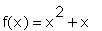
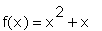
We can use crossword to do tables of function values.
>
tagit([
anstype=crossword,
problem=[["Complete the table of function values."]],
ansmat=matrix([
[[ x ],[f(x)=x^2 + x]],
[[ [1] ,"yellow"],[ "C",8,2,blue]],
[[ [2] ,"yellow"],[ "C",8,6,blue ]],
[[ [3] ,"yellow"],[ "C",8,12,blue ]]]),
incidmat=matrix([[0,0],[0,1],[0,1],[0,1]]),
tableoptions="border= 1"]);
QM_[0;2;6;12]
AH_[0]
Complete the table of function values.
lt_table border= 1 gt_
tr_
lt_td bgcolor=white gt_

dt_
lt_td bgcolor=white gt_
dt_
rt_
tr_
lt_td bgcolor=yellow gt_
1
dt_
lt_td bgcolor=blue gt_
AC_[8]
dt_
rt_
tr_
lt_td bgcolor=yellow gt_
2
dt_
lt_td bgcolor=blue gt_
AC_[8]
dt_
rt_
tr_
lt_td bgcolor=yellow gt_
3
dt_
lt_td bgcolor=blue gt_
AC_[8]
dt_
rt_
lt_/table gt_
SKIP_
>
>
multipart problems
tagit will construct problems with more than one part. WHS counts the problem as correctly answered only when each part is correctly answered in one submission. So, students must be told this. If the answers are not hidden
Say you have 3 parts in the same problem. The syntax is tagit([part 1],[part 2],[part 3]). Here's a two part example:
>
tagit(
[problem=[["Choose the selection which makes the following sentence true: Two lines in a plane are "]],
anstype=selection,
answers=["parallel","perpendicular"],
rightanswers=[1,0]],
[problem=[[" if they "]],
anstype=selection,
answers=["intersect","do not intersect"],
rightanswers=[0,1]]);
QM_[0;parallel;do not intersect]
AH_[0]
Choose the selection which makes the following sentence true: Two lines in a plane are
AS_[parallel;perpendicular]
AH_[0]
if they
AS_[intersect;do not intersect]
SKIP_
Exercise. The options pretext= and aftertext= are used to insert text in front of the question and after the answer, respectively.
i) Modify the tagit line above so that the sentence "Choose the selection ... sentence true:" occurs before the question number. You can do this by removing that sentence from the problem= option, and inserting the option pretext=[["Choose ... true."]] into the first list in the tagit line.
ii) Then modify the tagit line so that answers=["do","do not"]. This means you will need to insert the option aftertext=[[" intersect."]] into the second list in the tagit line.
Construction of a problem generator
We will illustrate a procedure for turning an ordinary problem formatted with tagit into a problem generator by using our familiar lawn mowing problem: Bill mows a yard in 3 hours, Jim mows it in 2. How long for both to mow it? We have already parameterized it and solved the more general parameterized problem.
Parameterized Problem.
Bill mows a yard in A hours. Jim can mow the same yard in B hours. How long does it take them to mow it together?
Solution.
As before let x be the time needed when both are working together. In one hour, Bill mows
 of the yard and Jim mows

of the yard. Together, they would mow
 of the yard. Solving for x, we get
 =
=

What we have below is the solution to this problem with A=3 and B=2, which is copied down from above. We will show how to turn this into a procedure for formatting different versions of the parameterized problem.
>
tagit(
[problem=[["Bill mows a yard in 3 hours. Jim can mow the same yard in 2 hours. How many hours does it take them to mow it together? (Assume they do not slow each other down when they work together.)"]],
anstype=radiospread,
answers=[5,1/3+1/2,1/(1/3+1/2),2.5,1/5],
rightanswers=[0,0,1,0,0]]);
>
The method for turning a specific problem into a procedure is illustrated here. The procedure is named in the
proc line
, which goes at the top (no punctuation at the end of the proc line). The parameters of the problem (A and B in this case) are enclosed in paraentheses after the word proc. Note how the parameters occur in the body of the procedure (the tagit line, in this case). We have replaced 3 by the parameter A and broken it out of problem statement, that is 3 has been replaced by ",A,". This needs to be done, because an A inside of a string is just printed as A. Note that we did not replace 3 by "],A,[", although we could have. I just like it better the first way.
Note how the answers line has changed: When we make up alternative answers, we try to think of ways the problem could be worked wrong. So for example, one might just add the times it take each boy (A+B), or add the rates at which they worked (1/A + 1/B). We just then put those into the answers line, and mark the right answer.
The at the bottom goes the
end proc
statement (ending with a semicolon)
>
lawn := proc(A,B)
tagit(
[problem=[["Bill mows a yard in ",A," hours. Jim can mow the same yard in ",B," hours. How many hours does it take them to mow it together? (Assume they do not slow each other down when they work together.)"]],
anstype=radiospread,
answers=[A+B,1/A+1/B,1/(1/A+1/B),(A+B)/2,1/(A+B)],
rightanswers=[0,0,1,0,0]])
end:
Now to get specific instances of the problem formatted for WHS, make calls to the procedure as shown below.
>
lawn(3,2);
QM_[0;C]
AH_[0]
Bill mows a yard in 3 hours. Jim can mow the same yard in 2 hours. How many hours does it take them to mow it together? (Assume they do not slow each other down when they work together.)
 is entered as 4*(5+8),
 is x^2 + 3*x, sqrt(3)/(1+sqrt(2)) is
 and
and
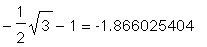
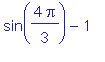 is sin(4/3*Pi)-1. When you type the expression into an input cell (starts with a prompt '>' and has red text), you need to end it with a semicolon ';'. Then when you press enter (with the cursor anywhere in that input cell), Maple will evaluate the expression and format the result in a following output cell. Examples:


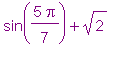 into an input cell. End the line with a semicolon. Put the cursor anywhere in the line and press return. Then convert it to a decimal number.
 and
and
 to solve the equation
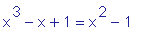 . . The maple word
plot
is used. In the plot below, we have plotted both sides of the equation, specifying the range to be from x= -2 to x = 3, and the view window to be the rectangle with x range from -2 to 3 and y range from -2 to 2.5.
. . The maple word
plot
is used. In the plot below, we have plotted both sides of the equation, specifying the range to be from x= -2 to x = 3, and the view window to be the rectangle with x range from -2 to 3 and y range from -2 to 2.5.
![[Maple Plot]](images/webpage13.gif)
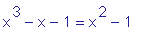 are about
 , and
, and
 .
.
 , we can see that two of the solutions disappear. (Actually, they become complex. See below)
 =
=
 by plotting both sides of the equation on the same axes.
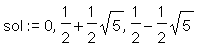

 down one unit to
 , we can see the resulting equation would only have one real solution. The other two solutions are complex numbers.

 =
=
 by using the Maple word solve. (To get the solutions in decimal form, make at least one of the coefficients decimal.
 of the yard. Now Bill mows
 of the yard in an hour and Jim mows
 of the yard. So the equation is
 =
=
 Solving for x, we get
 = 1.2 hours



![AC_[3]](images/webpage137.gif)


![AC_[3]](images/webpage141.gif)

![AC_[3]](images/webpage143.gif)


